

Do you have a list of contacts in Excel or Google Sheets and want to bring them into HubSpot to manage them more easily? Importing contacts may seem complicated at first, but HubSpot offers a simple and intuitive process. In this step-by-step guide, I’ll show you how to import contacts correctly and organize them so your CRM stays clean and useful.
What to Prepare Before Import
Before uploading your file to HubSpot, it’s worth spending a few minutes preparing your database. This will help you avoid errors, duplicates, and wasted time after the import.
- File format: HubSpot accepts CSV and XLSX files. If your data is in Google Sheets or Excel, export it to one of these formats before importing.
- Data cleaning:
- Remove duplicate contacts to prevent HubSpot from importing them multiple times.
- Check email addresses for errors (missing @, typos).
- Fill in missing fields that are essential for your business (e.g., company, phone, industry).
- Standardize formats for phone numbers (+44…, +1…) and names (e.g., “John Doe” instead of “jon doe”).
- Consistency:
- Use a consistent format for specific fields. For example, if some companies are registered as “Inc.,” write it the same way for all contacts.
- For city names, industries, or client types, use the same spelling throughout (e.g., “London” not “Lon” or “Lnd”).
- This makes segmentation and reporting easier later.
- Clear columns in the file:
Prepare standard columns: first name, last name, company, email, phone, industry.
Tip: Use the same column names as HubSpot properties (e.g., First Name, Last Name, Email, Phone Number). HubSpot will automatically map these during import, saving you time. -
Email address – essential:
The email is the unique identifier for contacts in HubSpot. Without a valid email, a contact may not be recognized correctly, leading to duplicates or incomplete records. Make sure every contact in your file has a valid email.
How to Import Contacts into HubSpot CRM – Simple Steps
-
Log in to your HubSpot account.
-
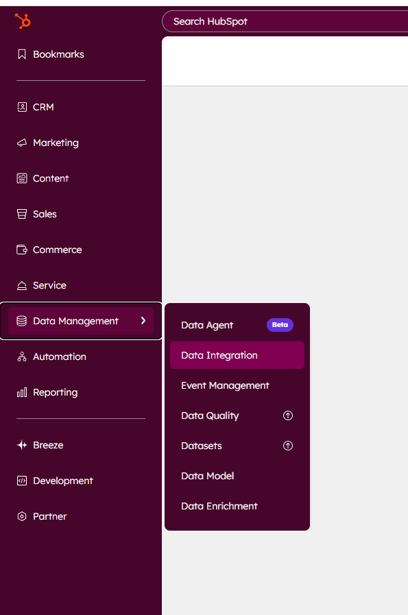
On the left menu, go to Data Management > Data Integration.
-
Under Import a file, click Import data.
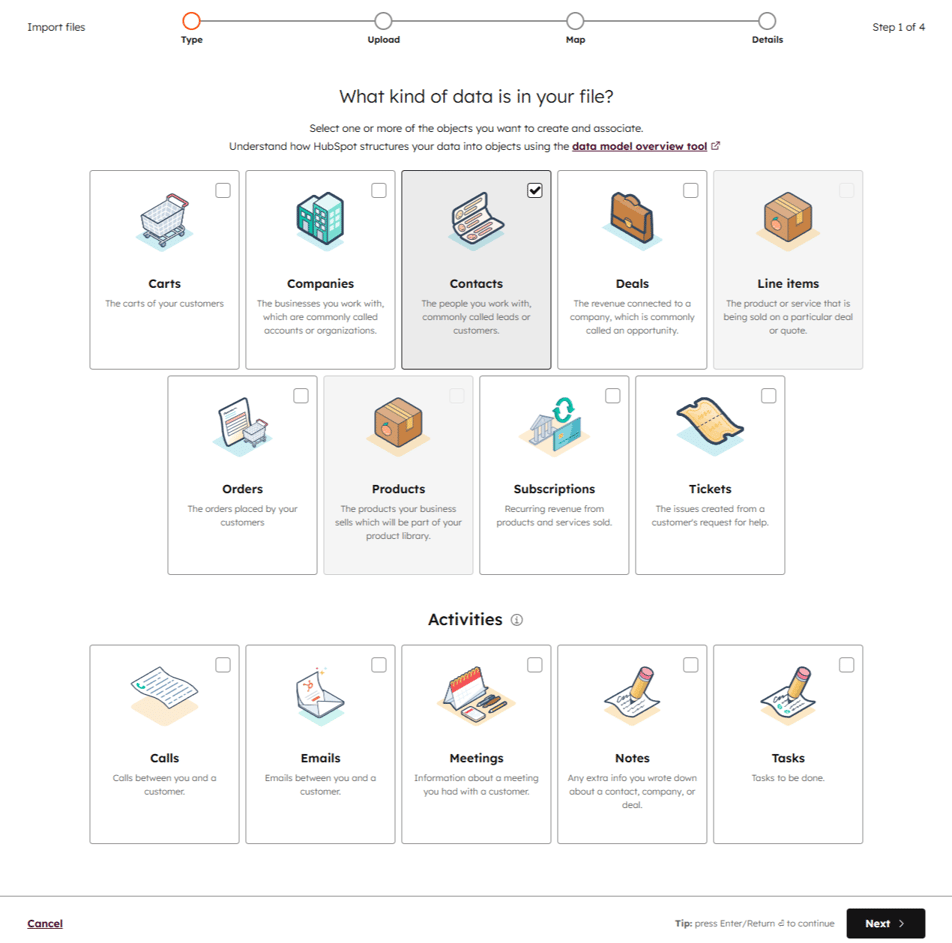
- Select the object type: usually, this is Contacts. If your file also contains companies or deals associated with the contacts, check these objects as well so HubSpot can create and link them automatically.
-
Upload your contact file.
-
Choose how to import contacts:
-
Create and update contacts – creates new contacts and updates existing ones.
-
Create new contacts only – adds only new contacts, leaving existing ones unchanged.
-
Update existing contacts only – updates only the contacts already in HubSpot.
-
-
Map fields: link the columns in your file to HubSpot properties (e.g., First Name → First Name). The easiest way is to name your columns exactly like HubSpot properties before importing, so mapping happens automatically.
-
Confirm and complete the import.
-
Review the results → HubSpot will show errors and how many contacts were created or updated.
Within a few minutes, your contacts are in the CRM and ready to use.
How to Organize Contacts in HubSpot After Import
Importing is only the first step. Properly organizing contacts allows you to get the most out of your CRM: you can personalize marketing campaigns, prioritize sales outreach, and quickly analyze contacts for better decisions.
- Dynamic lists (segments): create lists that update automatically based on criteria such as job title, industry, city, or lead source. These can be used for personalized and targeted email campaigns.
- Views and filters: set up custom views and filters to prioritize sales outreach or quickly see contacts that need attention.
- Reports: create custom reports to track contact performance, lead sources, and the effectiveness of marketing campaigns or sales activities. This helps you make data-driven decisions and optimize strategies.
Common Mistakes and How to Avoid Them
- Importing contacts without consent → adding people who haven’t opted in can lead to GDPR issues and spam complaints.
- Unclean files → importing data with duplicates, typos, or missing fields creates a messy database that affects segmentation and marketing campaigns.
- Inconsistent data → fields named differently (“Phone” vs. “Mobile”) make filtering, segmentation, and reporting difficult.
- Repeated imports without checking → the same contact may appear multiple times in the CRM, causing confusion and reducing data quality.
How to Keep Your Database Clean Long-Term
- Use HubSpot’s deduplication tool to identify and merge duplicate contacts automatically.
- Set required properties when adding contacts manually, ensuring each record has essential fields completed (e.g., email, name, company).
- Create lists for inactive contacts and re-engagement plans to track who isn’t interacting and plan targeted campaigns.
- Regularly update your database and remove outdated information to keep the CRM clean and effective for marketing and sales.
Conclusions
Now you know how to import contacts into HubSpot CRM and organize them for a clean, manageable database that supports your sales and marketing campaigns.